
I’ve been using AI in Chrome for a while now, and honestly, one of the biggest pain points has been retyping the same prompt over and over. You find a great way to ask for ingredient substitutions or a clever prompt for comparing product specs, and then you have to type it out again on every new page. It’s tedious.
Google just announced a fix for that. It’s called Skills, and it’s rolling out now to Gemini in Chrome on desktop.
What Skills actually does
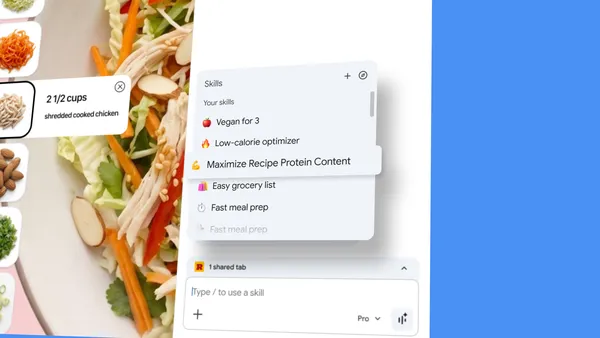
The idea is simple: you save a prompt you like, give it a name, and then run it on any page with one click. You type forward slash (/) or click the plus sign (+) in the Gemini chat, pick your saved Skill, and it executes on whatever page you’re viewing. You can even run it across multiple tabs you select.
I’ve been testing an early version, and it’s surprisingly smooth. The key difference from just bookmarking a prompt is that Skills are context-aware — they pull in the content of the page you’re on. So if you saved a Skill that says “find all the protein macros in this recipe,” it actually reads the recipe on the page and gives you the numbers.
The library is actually useful
Google also launched a library of pre-made Skills for common tasks. Things like breaking down product ingredients, cross-referencing gift options against a budget, or scanning long documents for key info.
I was skeptical about this at first — preset prompts usually feel generic — but the ones I tried were genuinely useful. The “side-by-side spec comparison” Skill, for example, opened multiple tabs and generated a table of specs without me having to manually align anything. That’s the kind of thing that would have taken me five minutes of copy-pasting before.
You can grab any Skill from the library, try it, and then edit the prompt to customize it. That’s the smart part — they’re not locked down.
Privacy and control
Skills inherit Chrome’s existing privacy protections for Gemini prompts. That means before a Skill does something like adding an event to your calendar or sending an email, it asks for confirmation. Google also mentions automated red-teaming and auto-update capabilities, which is standard for their AI features at this point.
Your saved Skills sync across signed-in Chrome desktop devices, and you can manage them from the compass icon after typing forward slash.
The real use case
Early testers have been using Skills for stuff like calculating protein macros on any recipe page, generating product comparisons across shopping tabs, and pulling summaries from long documents. These are all things you could do manually, but the friction of repeating the prompt made it not worth it.
That’s the insight here — it’s not about doing something new. It’s about removing the friction that stops you from doing something you already know works.
What’s missing
Skills are desktop-only for now. No word on mobile, which is a bummer because that’s where I’d use them most for quick lookups. Also, the library is still small — maybe two dozen Skills at launch. I’d like to see community submissions or sharing at some point.
But as a first step, this is good. It’s one of those features that feels obvious once you see it, and that’s usually a sign they got it right.
Comments (0)
Login Log in to comment.
Be the first to comment!